Versione italiana disponibile:
leggi la guida in Italiano
WebP export in Lightroom Classic:
batch export with my plugin (macOS & Windows)
Lightroom Classic currently doesn’t offer WebP among its export formats. If you work for the web, this often becomes a forced extra step through Photoshop or external converters.
Annoying problem. How do you fix it?
In this guide I’ll show you a practical way to export WebP directly from Lightroom Classic, so you can convert many photos at once (batch).
It’s a typical situation: you finish the selection, do your edits, and you’re ready to export the final images…
Then you realize the most convenient format for web performance (WebP) isn’t available in Lightroom Classic export.
The result? Export JPEG/PNG, open, convert, re-check, repeat. And when you have 200 photos, it becomes wasted time.
The solution I use in my workflow: I personally developed this plugin to add WebP export to Lightroom Classic.
In practice, Lightroom renders the file and the plugin converts it to WebP via cwebp (the WebP encoder).
Why you can trust it: it’s not a “hack”. It’s a safe workflow.
Install the plugin, install cwebp (it takes a bit of patience on macOS), set a path, and export.
If you know how to use Export in Lightroom, you already know 90% of the process.
“Native” Lightroom vs Lightroom with WebP export
✅ Without a plugin
You export to available formats (JPEG/PNG/TIFF, etc.). If you need WebP, you must add an extra step (Photoshop or converters).
🚀 With my WebP (cwebp) plugin
In Export, choose “WebP (cwebp)”: Lightroom renders and the plugin automatically converts to .webp.
Result: WebP directly from batch export.
In two words: fewer steps, fewer mistakes, more speed. And most importantly: when you have 200/500 photos, nothing changes — you export them all to WebP like you would to JPEG. 🙂
Download & requirements (2 things)
- “WebP (cwebp)” plugin for Lightroom Classic
Download it here: - cwebp (WebP utilities)
This is the converter that actually creates the .webp files. The plugin automatically calls it during export.
Quick checklist (to confirm everything is set up):
1) You can see “WebP (cwebp)” in File → Export…
2) You installed cwebp (macOS: Homebrew / Windows: libwebp utilities)
3) You entered the cwebp path in “cwebp executable path”
Install the plugin in Lightroom Classic (macOS & Windows)
- Unzip the plugin archive: you should get a folder that ends with .lrplugin (e.g. LightroomWebPExport.lrplugin).
- Open Lightroom Classic → File → Plug-in Manager…
- Click Add and select the .lrplugin folder.
Go to File → Export… and make sure you can see WebP (cwebp) in the export list.
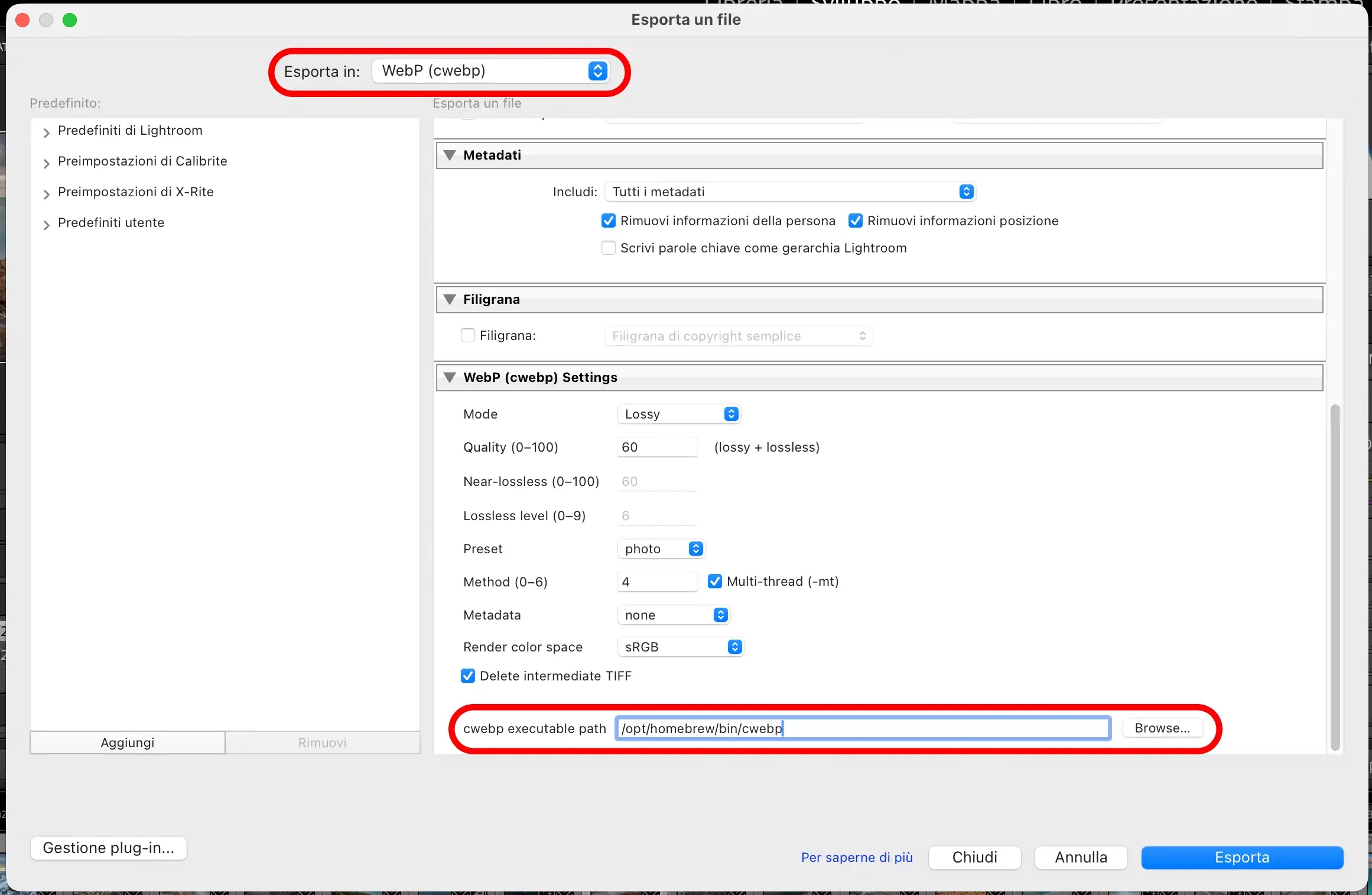
If you see “cwebp not found”, it’s not a Lightroom problem: you simply need to install cwebp and set its path (see macOS / Windows sections below).
macOS (Apple Silicon: M1 / M2 / M3 / M4): step-by-step
Test environment (used for this guide)
- Mac: Apple Silicon M4 Pro
- macOS: Tahoe 26.2
- Lightroom Classic: 15.1.1 (January 2026 release)
Note: if you use a different macOS or Lightroom Classic version, the steps are the same; only some menu labels may vary.
On Apple Silicon, after installation, cwebp is typically located here: /opt/homebrew/bin/cwebp.
Lightroom is a GUI app and often doesn’t “see” the Terminal PATH, so we set the path explicitly in the plugin.
Step 1 — Install Homebrew from Terminal (only if you don’t have it). Copy & paste the command below.
It will take a few minutes. You can open Terminal via Spotlight (press Command⌘ + Space). If you already have Homebrew, skip to Step 2.
/bin/bash -c "$(curl -fsSL https://raw.githubusercontent.com/Homebrew/install/HEAD/install.sh)"
echo >> ~/.zprofile
echo 'eval "$(/opt/homebrew/bin/brew shellenv zsh)"' >> ~/.zprofile
eval "$(/opt/homebrew/bin/brew shellenv zsh)"
Step 2 — Install cwebp (WebP utilities)
brew install webpStep 3 — Verify the cwebp path
which cwebp
cwebp -version
Step 4 — Set the path in the plugin (key step)
- Lightroom Classic → File → Export…
- At the top, select WebP (cwebp) from the export list
- In cwebp executable path (bottom of the WebP settings), paste: /opt/homebrew/bin/cwebp
- Export one test photo to a specific folder.
If you still see “cwebp not found”: restart Lightroom and make sure the field contains the full path (not just “cwebp”).
Windows: step-by-step
On Windows you need the cwebp.exe executable (WebP utilities). Download it, extract it to a folder, then point Lightroom to the full executable path.
Step 1 — Download cwebp for Windows (official ZIP)
Official source (Google / WebP):
https://developers.google.com/speed/webp/docs/precompiled
Direct download Windows x64 (includes cwebp.exe):
libwebp-1.6.0-windows-x64.zip
Note: if a newer version is released, you’ll always find it on the “precompiled” page above.
Step 2 — Extract the ZIP to a simple folder
Recommended: create C:\Tools\webp\ and extract the ZIP there.
Step 3 — Locate cwebp.exe
Inside the extracted folder you’ll find a bin subfolder. The typical path is:
C:\Tools\webp\bin\cwebp.exe
Step 4 — Set the path in the Lightroom plugin
- Open Lightroom Classic → File → Export…
- At the top, select WebP (cwebp)
- In cwebp executable path (bottom of WebP settings), paste/select the full path, e.g. C:\Tools\webp\bin\cwebp.exe
- Export one test photo.
If you still see “cwebp not found”: make sure you pasted the complete path to cwebp.exe (not just the folder) and restart Lightroom.
Batch WebP export:
many photos at once (without changing your habits)
This is the “best part”: once setup is done, WebP export becomes just a preset.
Select 50, 200 or 1000 images and Lightroom processes them in sequence as usual — the plugin automatically converts each file to WebP.
Simple workflow
- Select your photos.
- Go to File → Export…
- Select WebP (cwebp)
- Set destination, file naming, resize, etc. (if you need it).
- Click Export.
Workflow tip: create 2 WebP presets and save them (e.g. “WebP q80” and “WebP q70”) so you can choose quickly depending on use (portfolio / blog / e-commerce).
Recommended WebP settings for photos
(balanced quality / file size)
- Mode: Lossy
- Quality: 80 (recommended starting point)
- Preset: photo
- Method: 4 (balanced)
- Metadata: icc,exif,xmp (if you want to keep profile and data)
- Color space: sRGB (recommended for web)
If you want smaller files: try Quality 75 or 70. For images with lots of micro-texture (leaves, hair, fabric), q80 is often a solid compromise.
How to set up the WebP (cwebp) plugin: what each option means
These options control how cwebp compresses the image and which metadata are kept.
For a “safe” web result, start with Lossy, Quality 80, Preset: photo, Method 4,
Render Color Space: sRGB.
Mode (Lossy / Lossless)
Lossy = compression with some loss (smaller file). Typical choice for web.
Lossless = no quality loss (bigger file), useful for graphics, UI, logos or when you want zero degradation.
Tip: for photos, use Lossy most of the time.
Quality (0–100)
Controls the quality / size trade-off in Lossy mode: higher = better quality and larger file.
Practical values: 70–75 (very small), 80 (balanced), 85–90 (high quality).
Preset (photo / picture / drawing / icon / text)
A profile that tunes internal parameters for different content types.
photo = recommended for photography (most cases).
picture = similar to photo, often good for “general” images.
drawing / icon / text = better for graphics, logos, UI elements and text (reduces artifacts on sharp edges).
Tip: for photos use photo. For logos/graphics try icon or drawing.
Method (0–6)
Controls how hard the encoder works: higher values may compress better (same quality, smaller file) but take longer.
Tip: 4 is a great balance. If you export hundreds of photos and want speed, stay around 3–4.
Metadata (icc / exif / xmp)
Controls what information is embedded in the WebP file:
icc = embedded color profile (useful for consistent color).
exif = camera/lens/shutter/ISO data.
xmp = metadata/description (sometimes: author, copyright, keywords).
“Safe” tip: keep icc,exif,xmp if you need everything. For maximum lightness, you can drop exif/xmp.
Render Color Space (export color space)
This is the color space Lightroom uses to render the image before converting to WebP.
sRGB = most compatible for web and social (recommended).
Display P3 = can look more saturated on compatible devices, but isn’t always the most universal choice.
Adobe RGB / ProPhoto = generally not recommended for “generic web” output (risk of dull color in unmanaged viewers).
Tip: for web use sRGB + include icc in metadata.
Other options (if you see them in the panel)
Lossless alpha / Transparency: useful for PNGs with transparency (logos/overlays).
Resize: handled by Lightroom (pixel dimensions/long edge). The plugin converts after rendering.
Output sharpening: also a Lightroom choice; the WebP inherits the final rendered result.
Ready-to-use presets
WebP “Standard Web”: Lossy · Quality 80 · Preset photo · Method 4 · Metadata icc,exif,xmp · Render Color Space sRGB
WebP “Lightweight”: Lossy · Quality 75 · Preset photo · Method 3–4 · Metadata icc · Render Color Space sRGB
WebP “Graphics/Logo”: Lossless · Preset icon/drawing · Metadata icc · Render Color Space sRGB
Common issues (quick fixes)
1) “cwebp not found” on macOS
Enter the full path in “cwebp executable path”: /opt/homebrew/bin/cwebp. Then restart Lightroom.
2) “cwebp not found” on Windows
You must set the full path to cwebp.exe (e.g. C:\Tools\webp\bin\cwebp.exe).
3) Export finishes but you don’t see .webp files
For testing, export just 1 photo to Desktop with a simple filename, then check the destination folder set in Export.
4) macOS blocks a manually copied executable
If you don’t use Homebrew and manually copy cwebp into a folder, you might need to make it executable (chmod +x) and remove quarantine (xattr -d com.apple.quarantine).
FAQ
Is the plugin enough by itself?
No. The plugin adds the export option and manages the workflow, but the WebP conversion is done by cwebp.
Can I convert 200 photos at once?
Yes. If Lightroom can export 200 photos in batch, the plugin can convert them to WebP one by one during the same export.
Which color space should I use?
For the web, sRGB is usually the most compatible choice.
If something doesn’t work, can I contact you?
Yes. If you want to report an issue, you can write to me using the form at the bottom of the page.
Want a faster workflow (web export, presets, consistent quality)?
If you want to truly optimize post-production and export (Lightroom + Photoshop), here’s my complete learning path.
If you’ve made it this far, you now have a concrete method to export WebP images directly from Lightroom Classic,
without extra steps and without changing your workflow.
This is exactly the kind of solution I decided to build when I ran into the same limitation:
a real need, solved in a practical way.
Use this guide as a reference, adapt it to your needs and
if you found it useful, feel free to share it.
It’s also thanks to these exchanges that I can keep developing tools and content for people who truly work with images.
Would you like to leave a comment, suggestion or feedback about this guide?
Write below — I always enjoy reading it.